 Seekd
Set up once, then use Search and Transfers
Connect your slskd server before your first search. Seekd works with the active server profile; check that you’re looking at the intended server before you queue a file.
Find and compare files
- In Search, enter a query and open its results.
- Compare the same filename across peers. Groups preserve the folder and peer so you can tell where an entry came from.
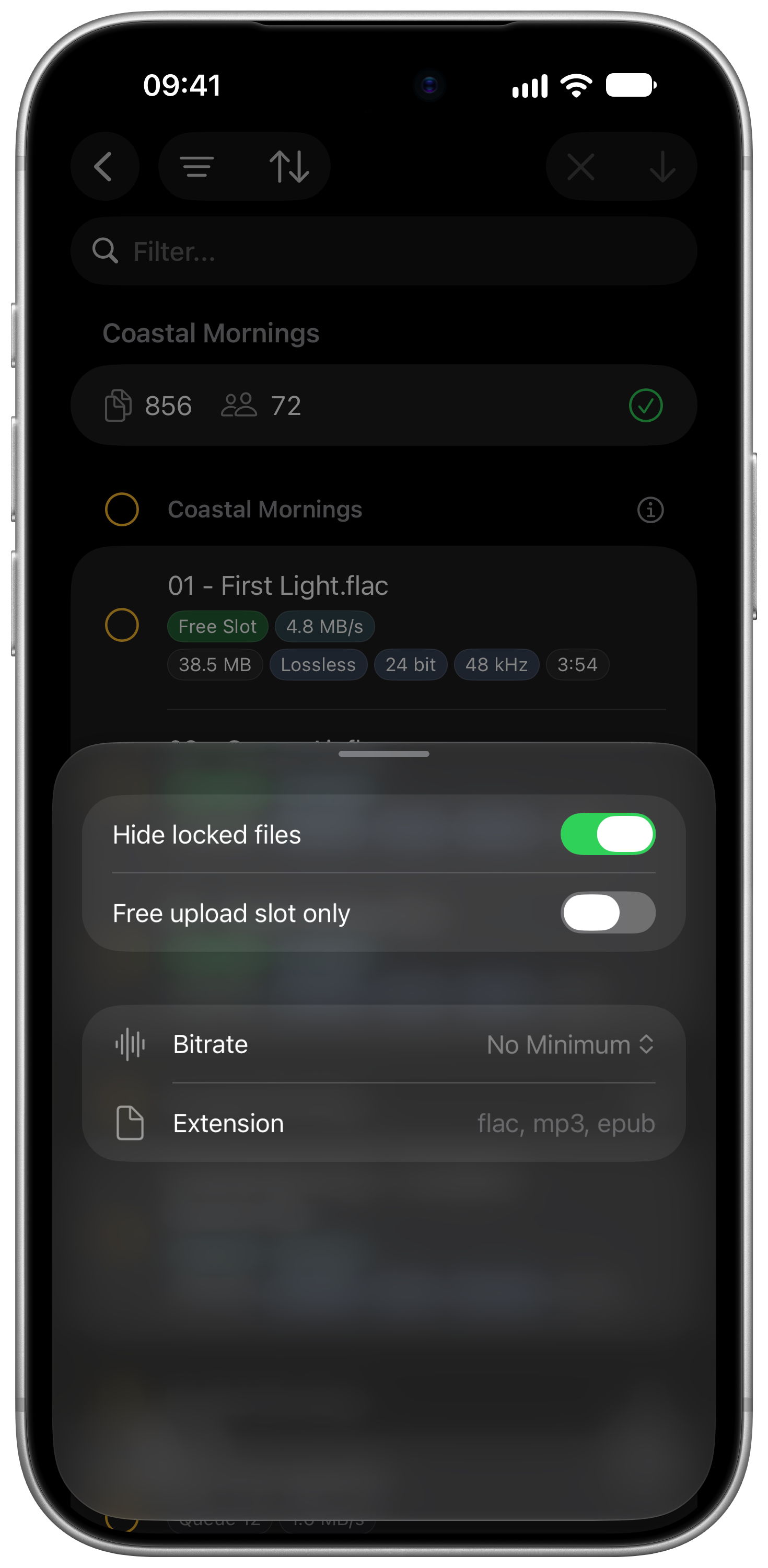
- Narrow results with the visible filter controls. Type and bitrate describe what the peer reported; the free-slot filter helps you find peers currently reporting room for a transfer. Neither is a promise that a transfer will start.
- Revisit search history to pick up a previous query. Run it again when you need fresh results.
Queue the intended files
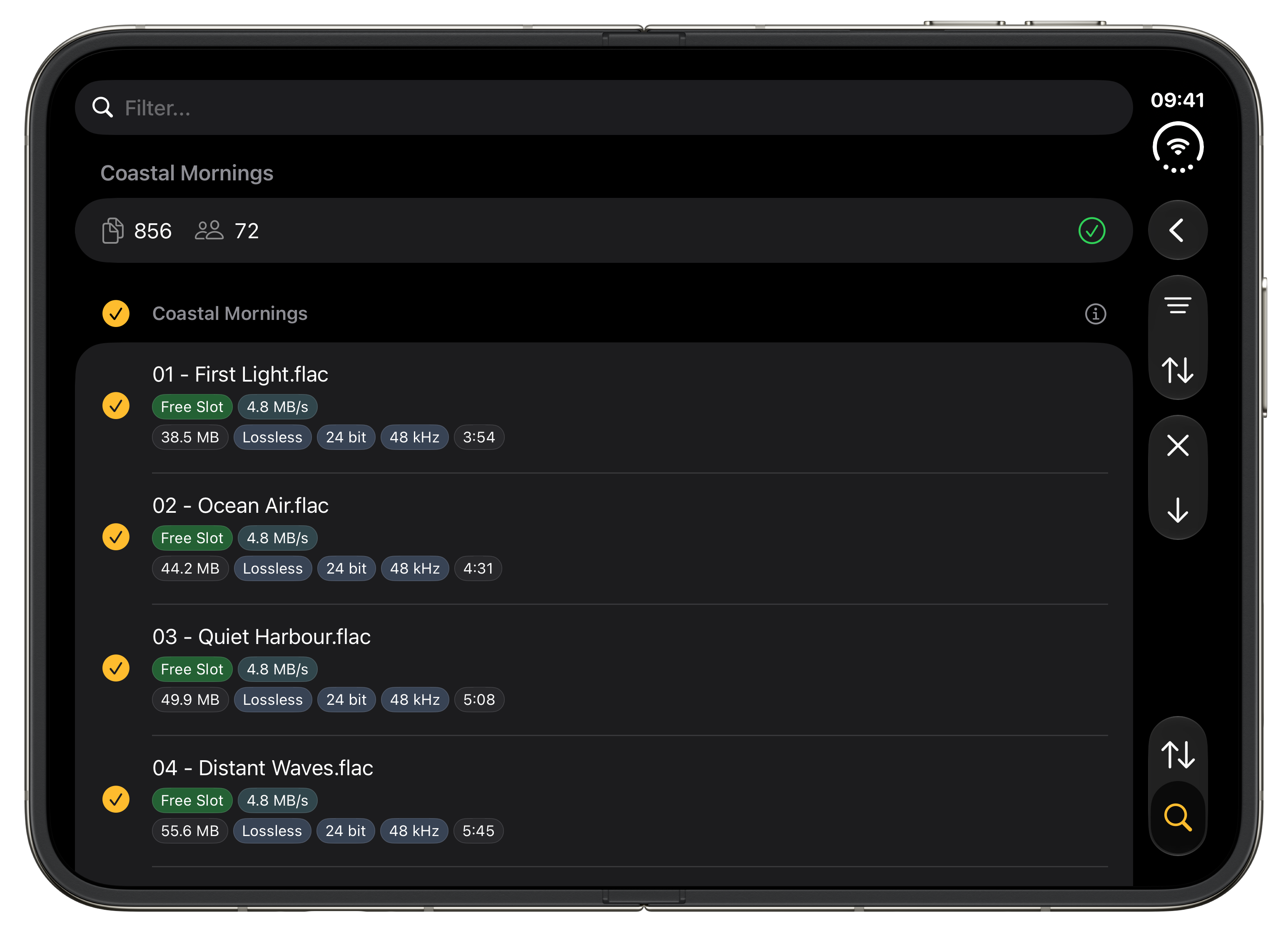
Select individual files or all matching files in a folder, then confirm what to queue. The folder action only includes files returned by the search. A confirmation means your server accepted the request. Check Transfers for progress and completion.
Read a transfer’s state
In Transfers, open Downloads and expand a folder to see its files. Active transfers show progress and speed; queued transfers can be waiting for the peer, a slot, or your server. A failed download can be retried when the corresponding action is available. If a peer has gone offline, another copy in your search results may be a better choice.
Switch to Uploads in Transfers to see what your server is sending. The slskd interface does not provide an upload-retry action. Stopping or removing an item from tracking is not the same as deleting files from server storage.
Where to find the result
Check slskd’s download directory on your server. Seekd does not make a local copy on the iPhone or iPad. You can close Seekd after the server has accepted a request; the server handles the rest. If something looks wrong, compare with the server’s web UI before retrying or changing connection settings.