 Seekd
Search with context
See results grouped by peer and folder. Filter by format, bitrate or available slots before you pick files.
iPhone & iPad · Self-hosted
Search Soulseek, queue files, and follow downloads and uploads from your iPhone or iPad. Seekd connects to your own slskd server, which handles the transfers and keeps the files.
Do I need a slskd server? Yes. slskd runs on your computer or NAS, and Seekd is the native remote for iPhone and iPad.
Search and transfers
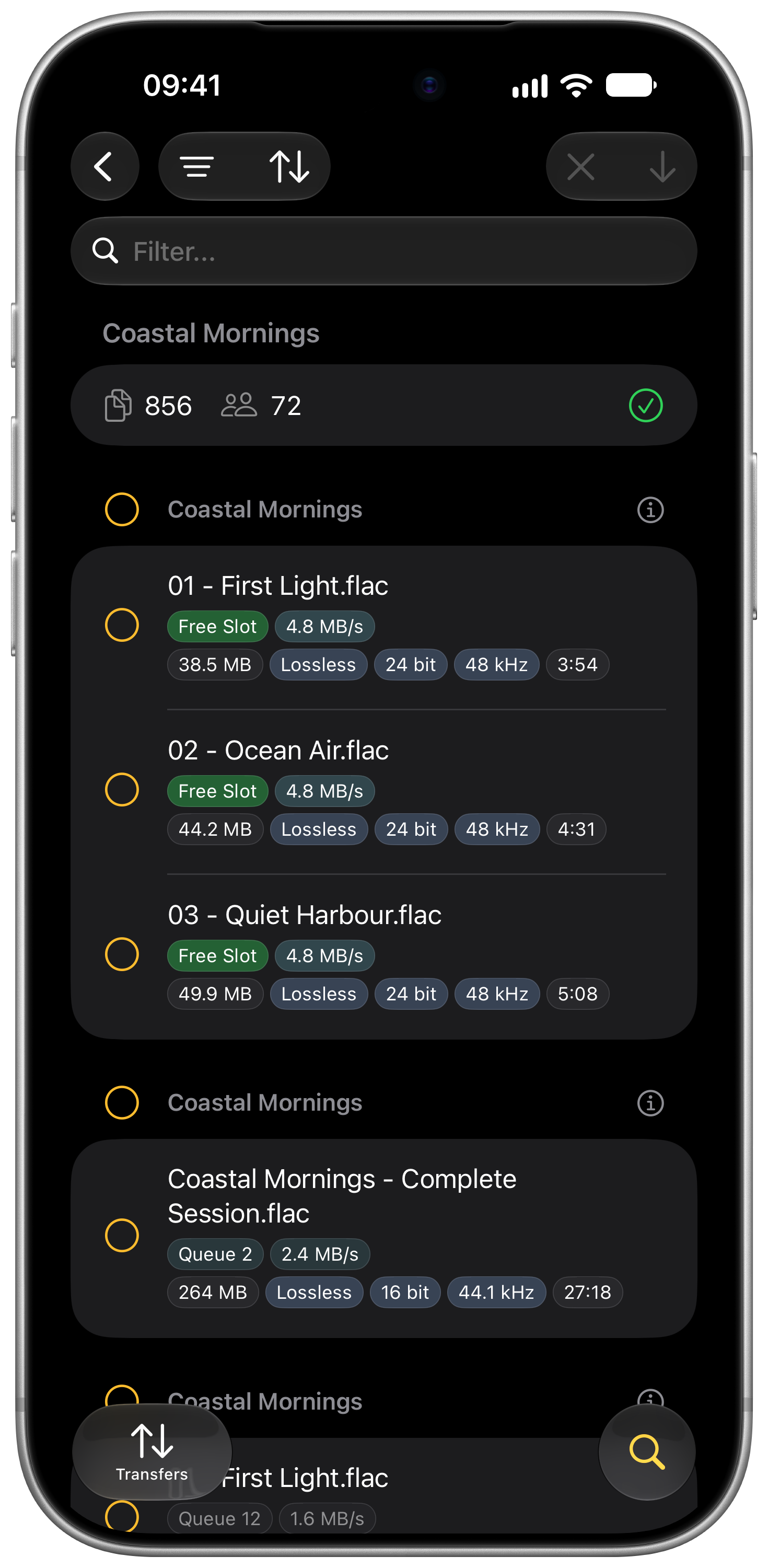
See results grouped by peer and folder. Filter by format, bitrate or available slots before you pick files.
Select individual files or all matching files in a folder. Review your selection before you queue it. Files land on your server, not on your phone or tablet.
Switch between downloads and uploads without losing track of which folders you opened. See how to manage downloads and uploads, including how to retry eligible downloads individually or as a group.
Made for the screen you use
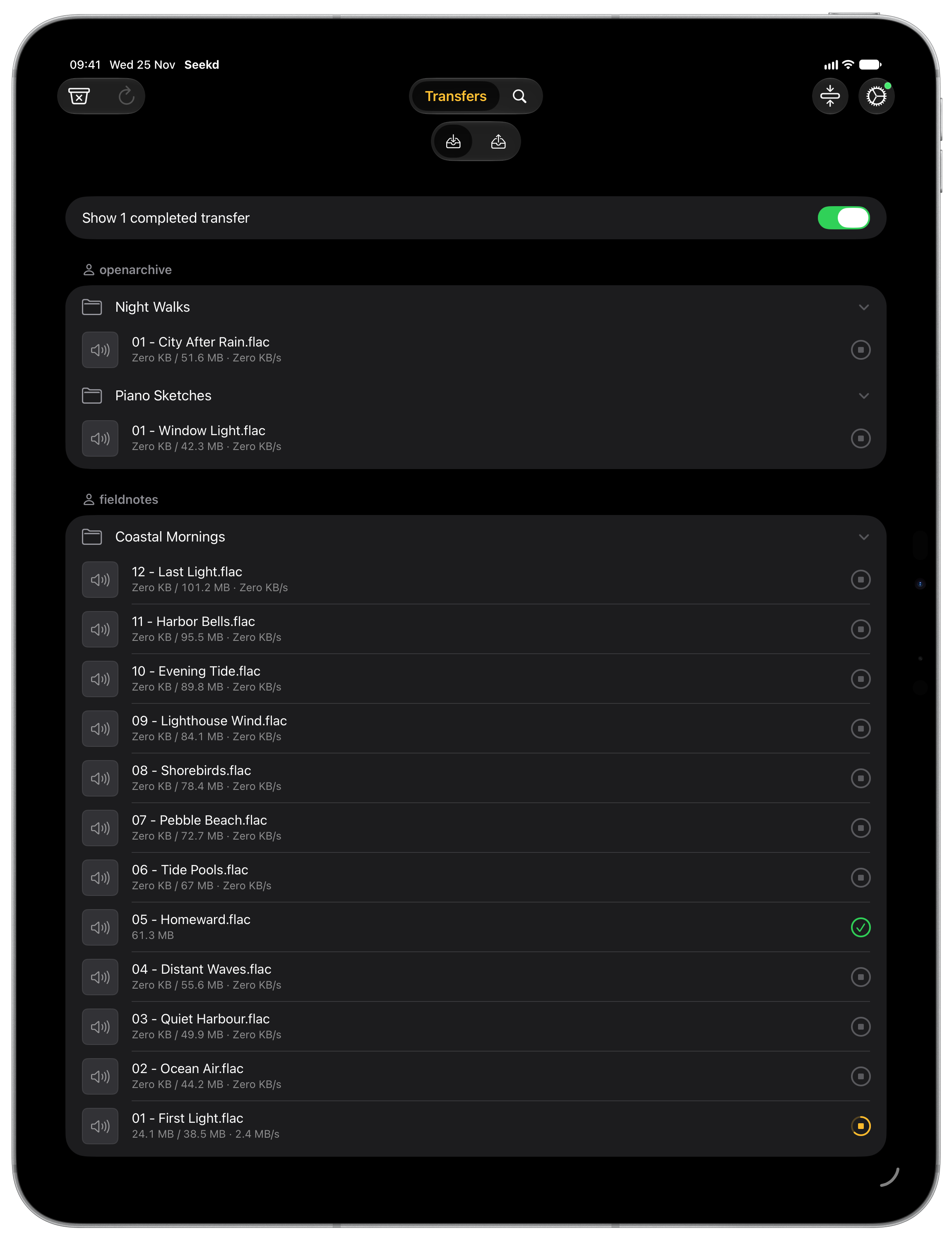
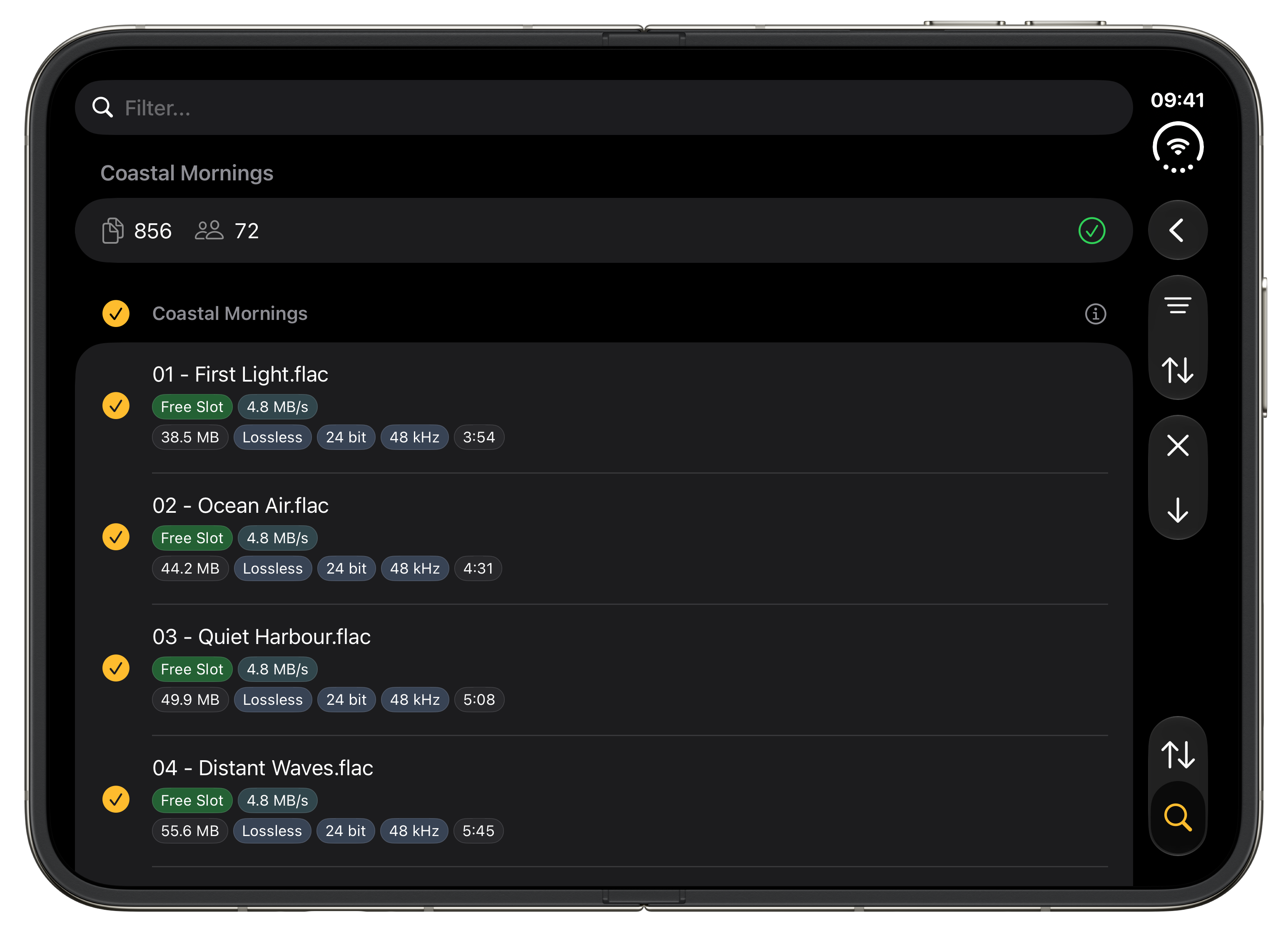
On iPad, see folder totals and individual file progress together. Unfold iPhone Duo to compare file details without losing sight of your selection.
Start here
Switch between saved profiles without re-entering credentials. Use a slskd API key or web login. Seekd stores your credentials in the device’s Keychain. If you can’t connect, see how to troubleshoot connection and authentication errors.
Connect Seekd to your slskd serverAway from home
Connect over a private network or authenticated HTTPS, and find out why a connection works on Wi-Fi but not on mobile data.
Access slskd away from homeGetting started
If slskd is already running, I’ll walk you through connecting Seekd and queueing your first download. Seekd is free with optional tips.